Saturday, March 9, 2013

Easily Annotate Images in Linux

My last post about filtering Craigslist search results was created with the help of a program called Shutter.

Shutter is a billed as a feature-rich screenshot program, which it is.  But I'm just taking my screenshots with the Print Screen key.  What I'm after is a quick way to add annotations (arrows, blurs, circles, etc.) to the resulting images.  Under Windows I use Irfanview for this and it works great.

But Shutter is MUCH better at this task than Irfanview and I'll tell you why:

The editing tools produce vector-based graphics and they 'float' above your image until you save it.  This is really a nice feature, since in the bitmap-based Irfanview, once you've made the edit you're pretty much done, unless you use the undo button.

With Shutter you can move your edits around to position them or resize them before saving, and there is no clutter to the tools, just the features you need right at your fingertips.

Here is the editing view of Shutter:

Shutter's edit view with the tools at left.
I've only used it for about an hour now and I am not sure how I missed this gem of a program in many years of using the Linux desktop.  This is a great piece of software for quickly and easily editing images.

Regex Filter Craigslist Search Results

How much does it suck to search for something on Craigslist (especially when looking for cars) only to get a bunch of completely irrelevant results?

In the automotive postings there are a bunch of jackasses who feel that they need to list their vehicle with a bunch of 'keywords' so that their vehicle is displayed to people who MIGHT be interested in it. 

Consider this lovely F-150.  The owner thought that someone interested in a Ford Probe might consider buying a pickup:
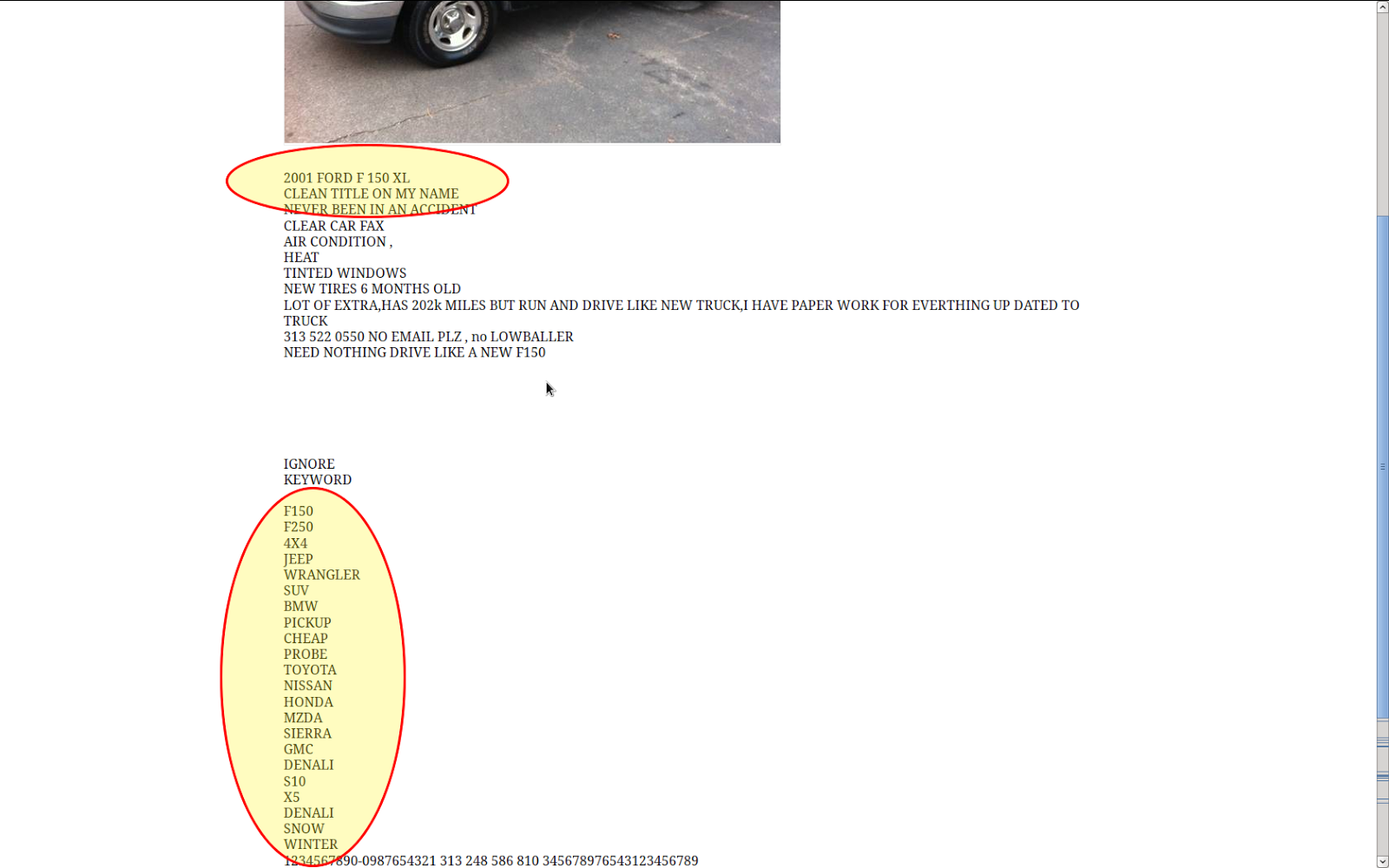
This guy was really clever to add all of these keywords to his ad.

Because of these people, your search results will often look like this:
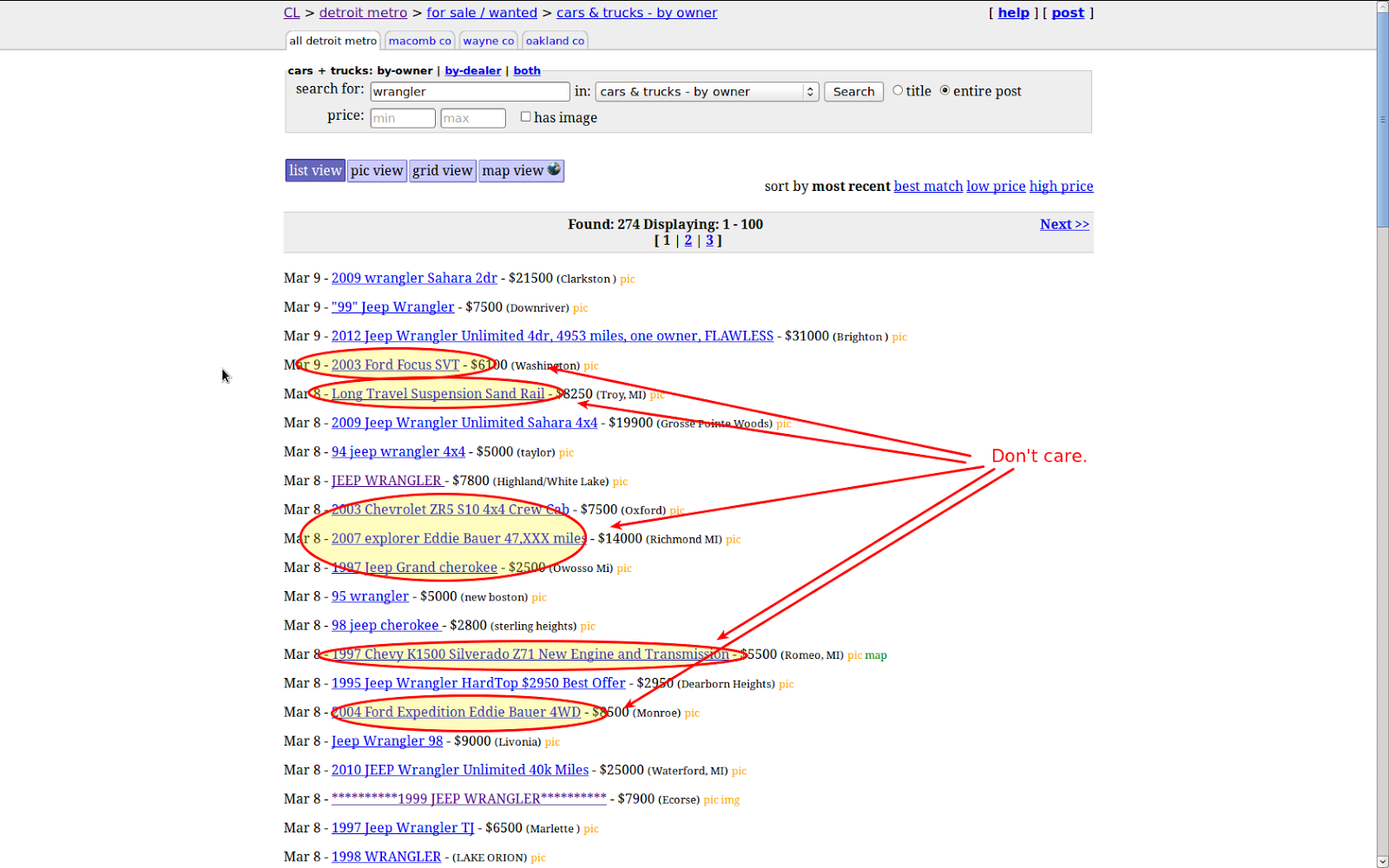
I'm trying to find Jeep Wranglers for sale and I don't care about this crap.
I thought, "Gee, it would be sweet if I could use regex to filter these results." 

Well, fortunately if you have Greasemonkey, there is a way to do this.  I searched userscripts.org and found the Craigslist Live Filter by Sam Rawlins.  Sam has posted the source at Github also, which is awesome as I'll explain in a minute.

After installing Sam's script, the first thing I noticed was that it was written to EXCLUDE results.  That is, what you are searching for can be minimalized in one of two ways:

1.  The script will make it gray and in a smaller font
2.  The result will simply be hidden from view.

This *will* do what I want but it makes my search a little more tedious.  In this case I'd need to have a regex to get rid of the crap above, something maybe like:

Focus|sand|explorer|cherokee|silverado|expedition

In this case what I'm searching for will be REMOVED from the results by Sam's script.

Instead, I want the tool to show me only what I WANT and exclude the other crap.  So, I've added an 'invert' checkbox to his script and I checked in the result at Github.

Now, since I'm interested in only 1997+ Jeep Wranglers, I can enter a regex like this:

199[789]|20\d\d.*wrangler

If you're not familiar with regular expressions, I could go on for another hour about how cool this little meta language is...  Instead I'll just explain that the above awesomeness means that I want to look for the text "199" followed by a 7, 8, or 9.  This means the following will produce a positive hit:

1997 
1998
1999

Further, the pipe (|) means OR, and I continue by saying that I'm also interested in the text "20" followed by two digits (\d means any digit character).  Then I say that the script is allowed to match ANYTHING (.) as MANY TIMES AS IT WANTS (*).

So at the end of the day, I'm looking for 1997-1999 OR 20xx with the word wrangler somewhere in the title.

Here is what the script looks like in action:
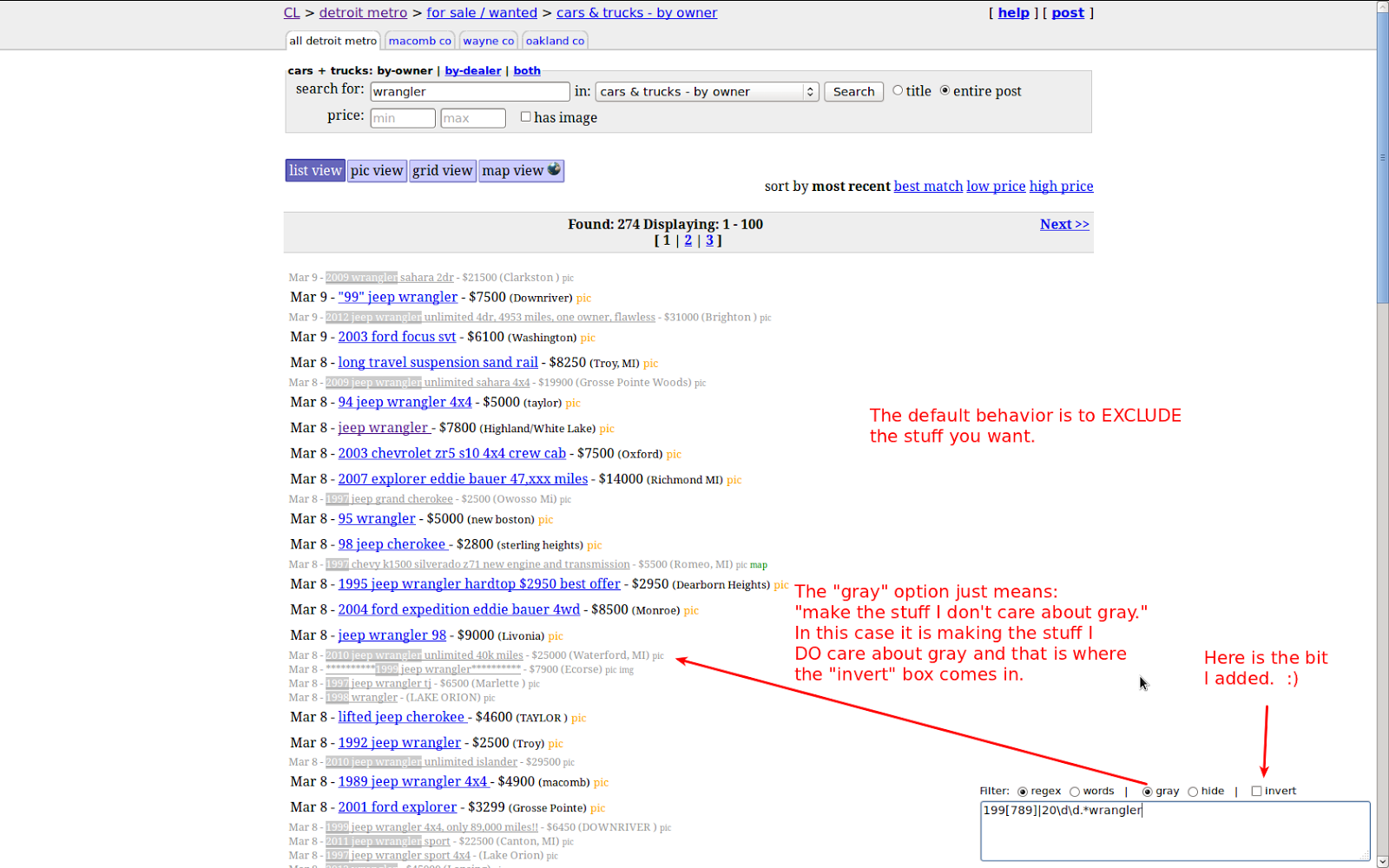
Sam's script in action, with my "invert" feature added but not used yet.

Now let's "invert" the search results and only show what we WANT:
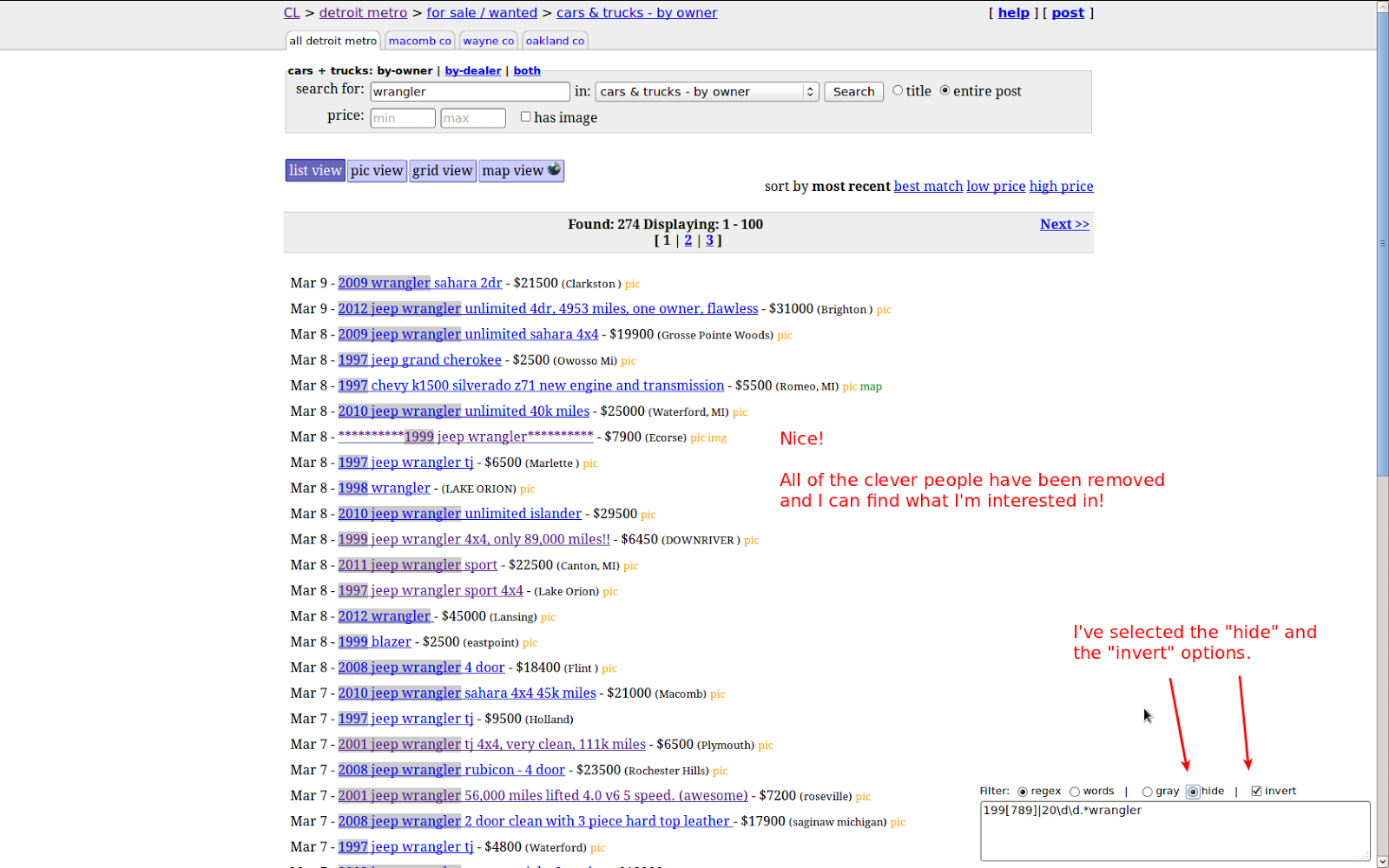
Invert feature in use.

So how do you get this awesomeness?  You need:
I think Chrome can support userscripts also but I'm not a Chrome user, so you'll need to investigate that on your own.  

Saturday, February 9, 2013

GoogleTV Failed to Boot Today (NSZ-GT1)

This morning my kids went downstairs as part of their usual 6:00am weekend routine.  (As a sidenote -- why aren't there Saturday morning cartoons on the major networks anymore?  When did this happen?)  My son came back up and told me that the TV wasn't working so I went down to investigate.

My GoogleTV wasn't booting.  Here are the symptoms:
  • The device had a DVD left in it.  I could hear it spinning up when the power button was pressed.  
  • The green power light would turn on, as well as the yellow eject light.  The SONY Logo would appear briefly but then disappear.  My TV would act as though there was no signal.  
  • The device would sit there as though it was still booting (DVD still spinning at high speed), but eventually the yellow eject button started flashing.
Thinking that the DVD was interfering with the boot process, the first thing I wanted to do was get the disc out of there.  But the device wouldn't let me eject it.  In this case I decided to boot into the service menu to see what options I had.
  • Unplug the power from the GoogleTV
  • Press and hold the power button, and keep it held down
  • Plug in the power while still holding the power button down
  • Continue holding the power button down until the service menu appears
Once the service menu appears, you have an option in the menu(s) to eject the DVD.  So, I tried it.  Annnnd I Got my disc out.  Now I tried to restart again.

No dice.  Back to the recovery menu.

At this point I tried the following:
  • Wipe/factory reset + reboot (didn't work)
  • Recovery (which is a reflash of the software) + factory reset + reboot (didn't work)
Now I'm getting a little concerned.  The first thing I do when I'm concerned about anything like this is turn to Google.  I came across this thread where user flavorhammer describes this process to reset the video output:
Reset the Eagle:
Turn off the power for 5 sec
Turn on the power and wait 30 second (system is rebooting)
Press and hold the Connect and eject buttons
- Connect first then eject: within 1 second of each other
- Hold both buttons until the green power light blinks
- Release both buttons
SiTV BD player will power down and reboot on its own.
SiTV BD player resolution is now set to auto; picture will be visible after splash screens.
So, I did this.  Actually I just approached the device in whatever state it was in (it may have even been off) and tried the connect + eject hold (connect first followed very shortly by eject) and waited to see what would happen.  In a few short moments the device was powering up (I was still holding the button combination down) and it started up!

Because of the several resets and reboots I had to start over with the screen calibration and carrier selection but this was not a big deal.

My GTV is back in business.

[Update Dec 2013] This "no signal" issue has happened a couple of times since.  I am not sure what triggers it or exactly what steps recover from it.  Last night I had this happen, I did a factory reset and update from recovery mode about three times and it would not boot, just showing "no signal".  In frustration, I unplugged the device and unplugged the HDMI cable and left it overnight.  I went back today to try again and it booted up fine after it was plugged in.  (??)