Showing posts with label greasemonkey. Show all posts

Monday, April 15, 2013

Search Mint.com Transactions by Date with Firefox or Chrome

 If you're a Mint.com user, you've probably noticed that the search interface isn't all that great.  For one thing, you can't search your transactions by date.  When tax season rolls around, it is absolutely necessary to search and display only the transactions from the previous year.

It seems I'm not the only one to have noticed this oversight.  Look at the discussion on the Mint.com help blog here.  At that time (2009!) Mint representative Matt Snider posted the following response:


You can, but currently only by modifying the URL directly. We intend to someday expose this functionality in the user interface, but have not been able to agree on a minty enough design. Anyway, go to the transaction page, and you should see "https://wwws.mint.com/transaction.event" in the URL. Add the following "?startDate=06/01/2009&endDate=06/30/2009" at the end of the URL and hit enter. Change the start and end date to the dates you want to search. The complete URL should look something like this:

https://wwws.mint.com/transaction.eve...

Here Mint admits that they've been unable to come up with a "Minty enough" design in four years time!  In addition, this post reveals a semi-official interface to do this filtering yourself.  With this information, at least we are somewhat equipped to fix this problem ourselves.
  • If you use the Chrome browser, check out this extension in the Chrome Web Store.  I'm not a Chrome user so I can't comment more on this solution but it looks pretty sweet.
  • If you use Firefox, you can use my Greasemonkey script.
The basic interface.  Both dates are OK, so they're colored mint green.
Prerequisites:
Using the script:
  • Load the "Transactions" view on Mint.com.
  • Two input fields will appear below the search box. 
  • Set the start date and end date.  
  • If both dates are valid dates the page should reload automatically click the "Go" button.
  • If either of the dates are invalid the invalid date will be marked as pink.
  • You can get pretty crazy with the input date.  Try "Jan 1 2013" or "12-Jan-13" or whatever you want.  This functionality comes from the awesome datejs library.  Read more about that here.
  • It is possible that you get into a situation where the dates aren't updating, in this case you may need to start from "Transactions" again.
Here are some more clips of what the interface looks like:

Hover over either date to get more information.  Note "yesterday" works fine.

...just using a different entry format.


Here is an invalid entry.

It isn't perfect, but better than nothing!  Check out the source at github, change it, and push it back to me!


Saturday, March 9, 2013

Regex Filter Craigslist Search Results

How much does it suck to search for something on Craigslist (especially when looking for cars) only to get a bunch of completely irrelevant results?

In the automotive postings there are a bunch of jackasses who feel that they need to list their vehicle with a bunch of 'keywords' so that their vehicle is displayed to people who MIGHT be interested in it. 

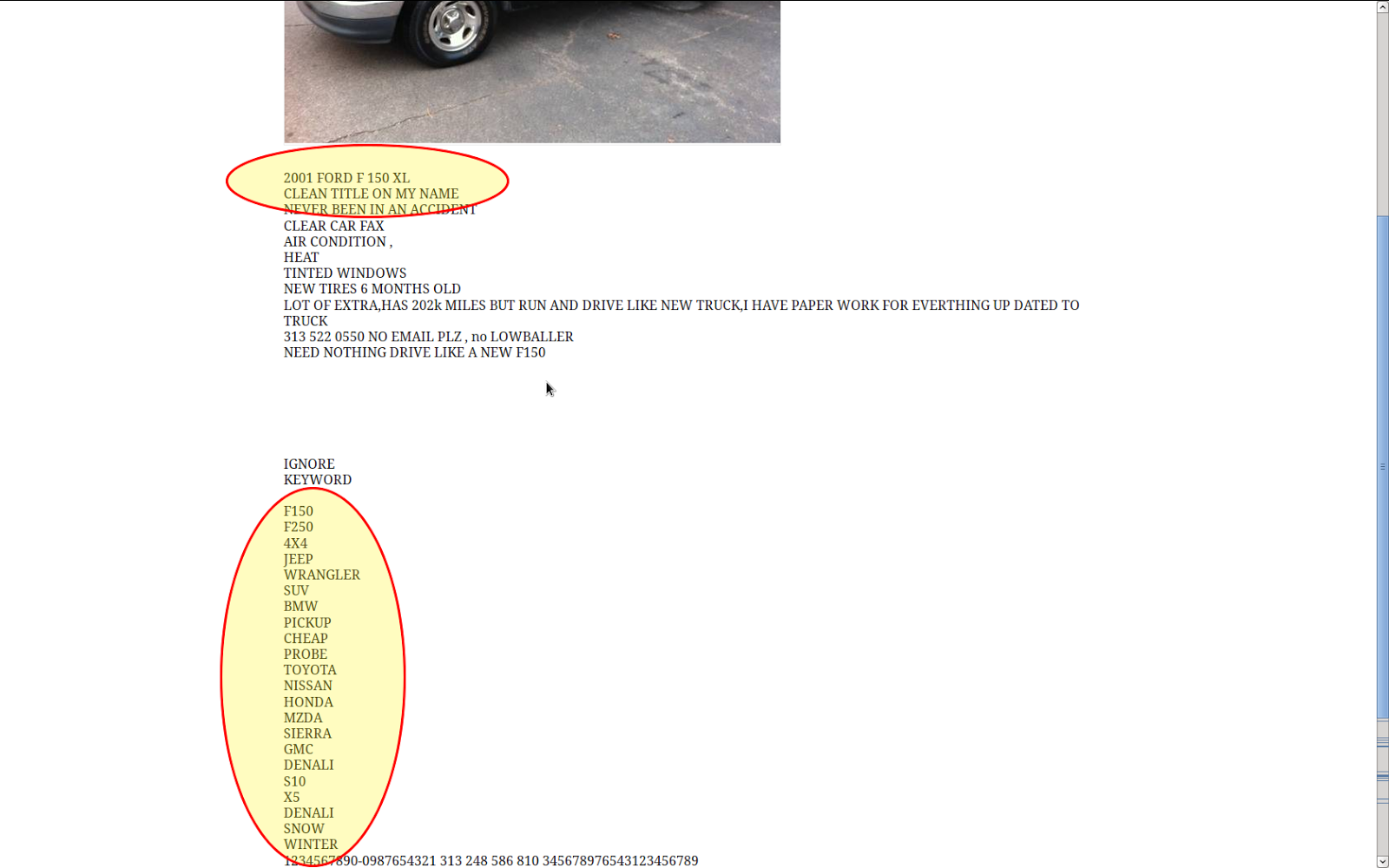
Consider this lovely F-150.  The owner thought that someone interested in a Ford Probe might consider buying a pickup:

This guy was really clever to add all of these keywords to his ad.

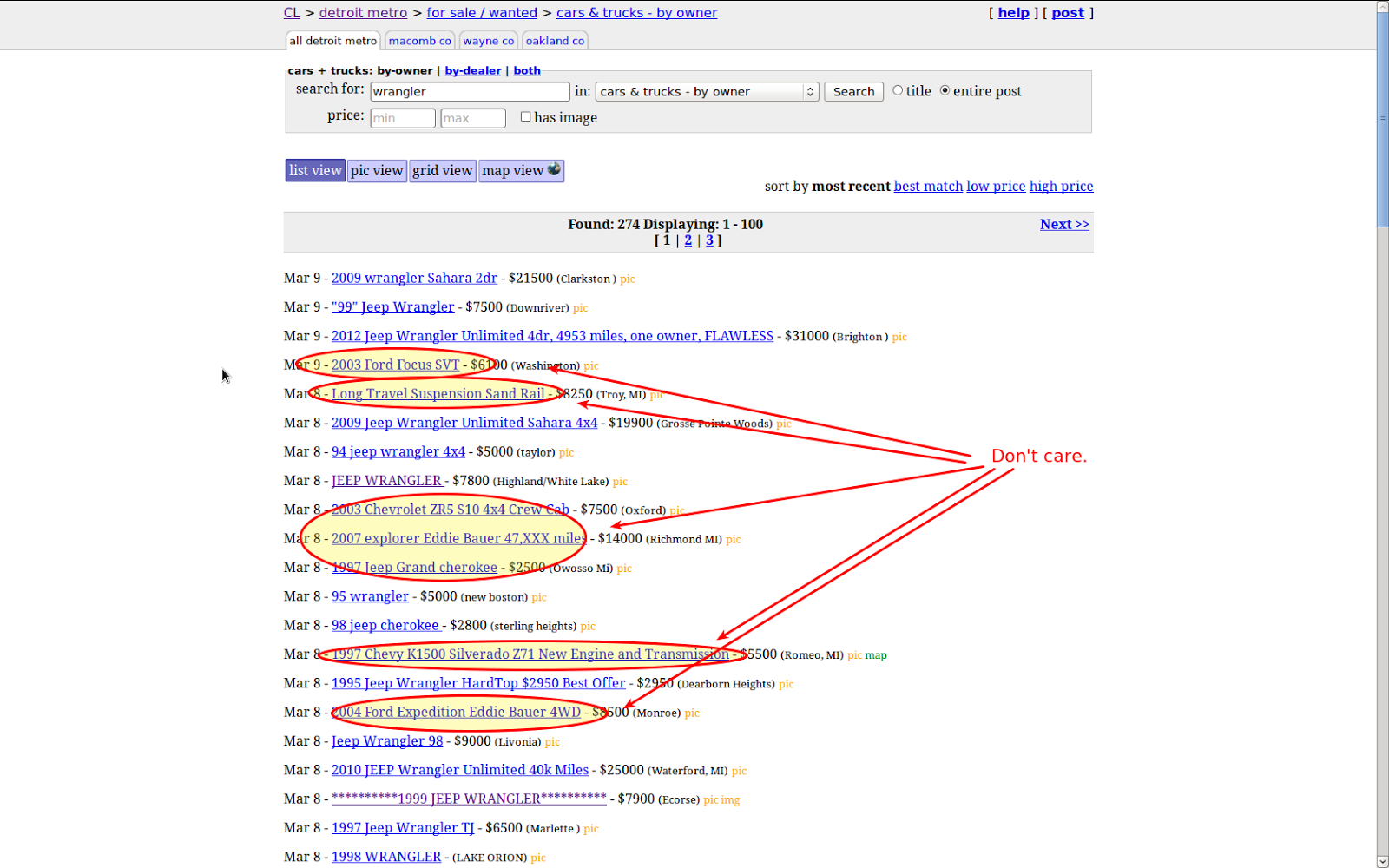
Because of these people, your search results will often look like this:

I'm trying to find Jeep Wranglers for sale and I don't care about this crap.
I thought, "Gee, it would be sweet if I could use regex to filter these results." 

Well, fortunately if you have Greasemonkey, there is a way to do this.  I searched userscripts.org and found the Craigslist Live Filter by Sam Rawlins.  Sam has posted the source at Github also, which is awesome as I'll explain in a minute.

After installing Sam's script, the first thing I noticed was that it was written to EXCLUDE results.  That is, what you are searching for can be minimalized in one of two ways:

1.  The script will make it gray and in a smaller font
2.  The result will simply be hidden from view.

This *will* do what I want but it makes my search a little more tedious.  In this case I'd need to have a regex to get rid of the crap above, something maybe like:

Focus|sand|explorer|cherokee|silverado|expedition

In this case what I'm searching for will be REMOVED from the results by Sam's script.

Instead, I want the tool to show me only what I WANT and exclude the other crap.  So, I've added an 'invert' checkbox to his script and I checked in the result at Github.

Now, since I'm interested in only 1997+ Jeep Wranglers, I can enter a regex like this:

199[789]|20\d\d.*wrangler

If you're not familiar with regular expressions, I could go on for another hour about how cool this little meta language is...  Instead I'll just explain that the above awesomeness means that I want to look for the text "199" followed by a 7, 8, or 9.  This means the following will produce a positive hit:

1997 
1998
1999

Further, the pipe (|) means OR, and I continue by saying that I'm also interested in the text "20" followed by two digits (\d means any digit character).  Then I say that the script is allowed to match ANYTHING (.) as MANY TIMES AS IT WANTS (*).

So at the end of the day, I'm looking for 1997-1999 OR 20xx with the word wrangler somewhere in the title.

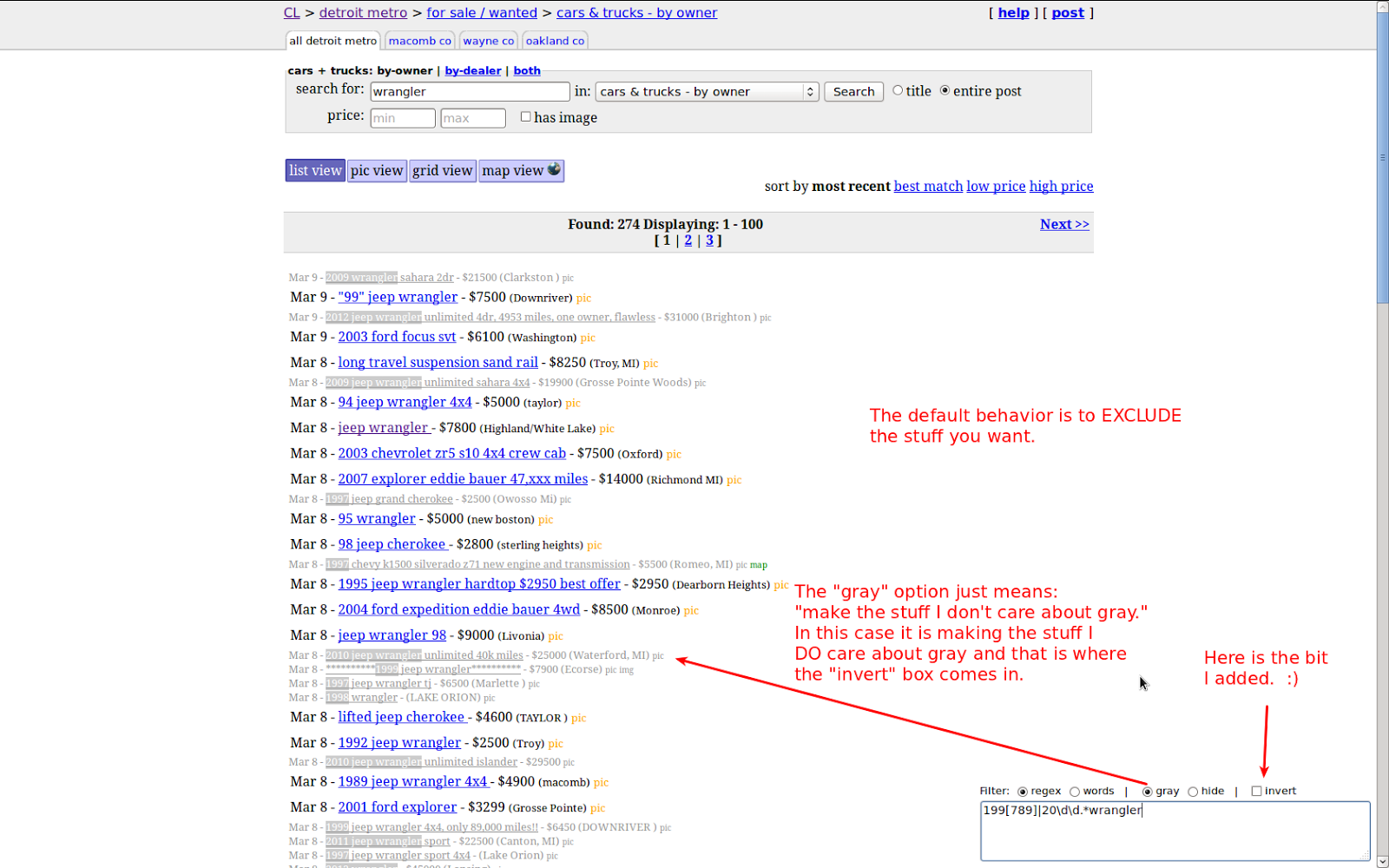
Here is what the script looks like in action:

Sam's script in action, with my "invert" feature added but not used yet.

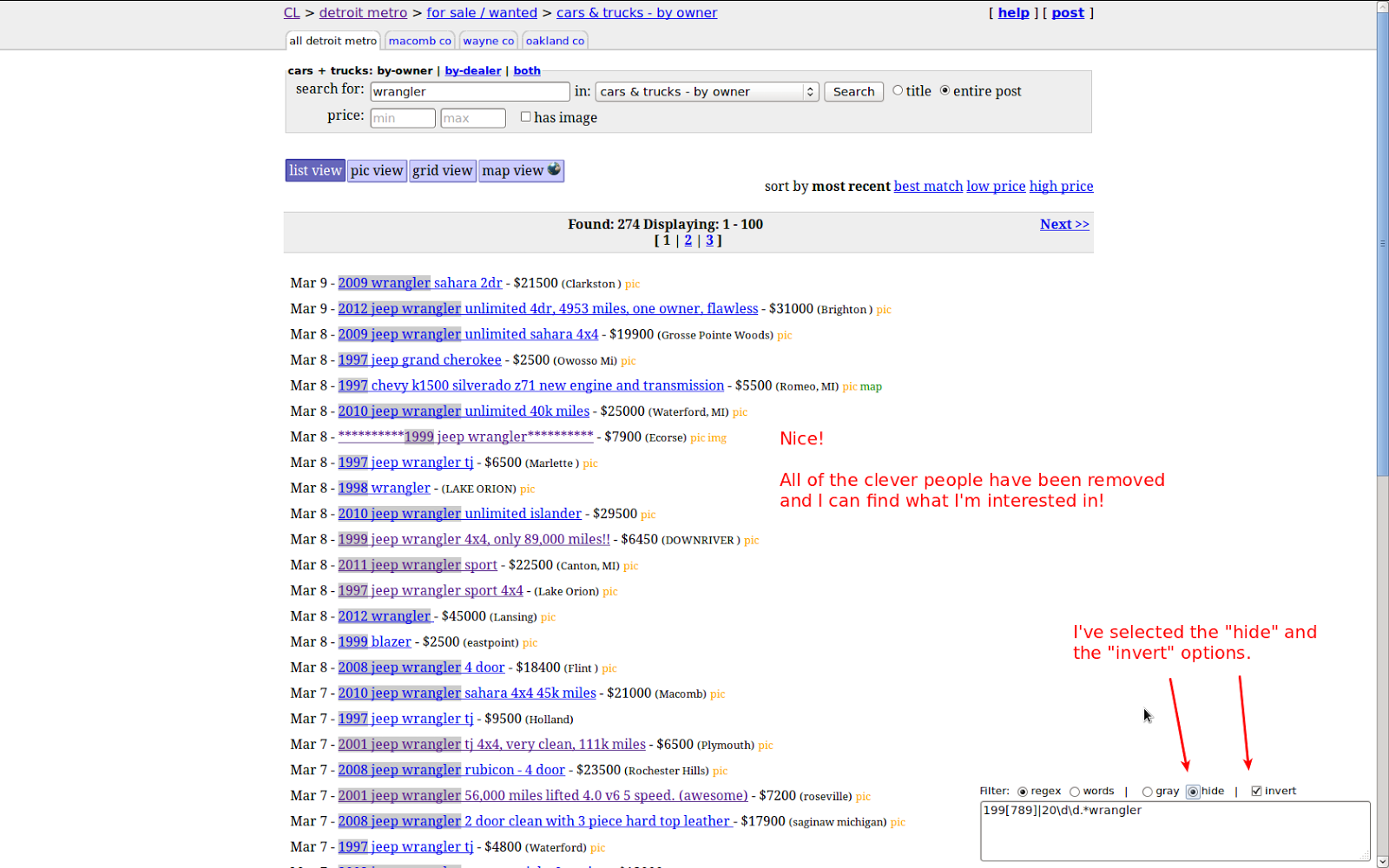
Now let's "invert" the search results and only show what we WANT:

Invert feature in use.

So how do you get this awesomeness?  You need:
I think Chrome can support userscripts also but I'm not a Chrome user, so you'll need to investigate that on your own.